
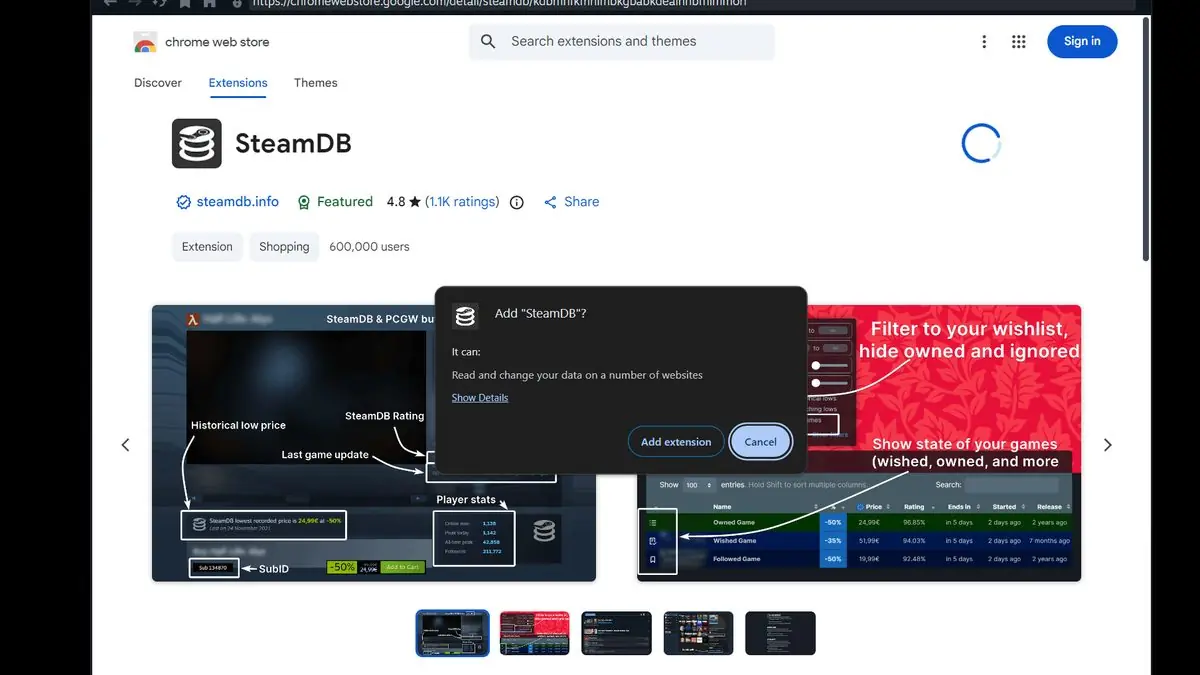
Steam just got a whole lot more powerful, and most users don’t even know it. Turns out, Valve‘s Steam client runs on the Chromium engine under the hood. That’s the same engine powering Chrome, Edge, and dozens of other browsers. What does this mean for you? You can install Chrome Web Store extensions directly into Steam.
This isn’t some experimental feature or beta build trick. It works right now on your current Steam installation.
The gaming community is buzzing about this discovery. Users are sharing step-by-step guides and showing off their newly enhanced Steam setups. The process is surprisingly straightforward for such a game-changing feature.
“Most people don’t know that you can install extensions in the Steam native client (things like SteamDB & etc.) There’s a very easy way to do it. Since Steam runs on Chromium, you can install almost any Chrome Web Store extension” — u/SpeaRofficial on r/Steam
The installation process is dead simple. Right-click any link in Steam and choose “Open link in new tab.” From there, navigate to the Chrome Web Store, find your extension, and click “Add to Chrome.” Steam will ask you to download the extension file, which you can save anywhere. Once installed, the extension appears in both the Steam client and the in-game overlay browser.
Popular gaming extensions like SteamDB and “Is It On Game Pass” work perfectly. SteamDB gives you deep stats on any game’s player count, pricing history, and technical details. The Game Pass checker instantly tells you if a Steam game is available on Microsoft‘s subscription service.
Of course, this hidden functionality raises some questions. Not every Chrome extension will play nice with Steam’s implementation. Some might cause performance issues or conflicts with Steam’s overlay system. Users report that ad blockers and privacy extensions generally work fine, but more complex extensions might cause problems.
There’s also the security angle to consider. Installing browser extensions always carries some risk, especially in a client that handles your game library and payment information. Stick to well-reviewed extensions from trusted developers.
Some users worry this might affect Steam’s performance. Adding multiple extensions to any Chromium-based application can increase memory usage and slow down browsing. But for most users, a few carefully chosen gaming-focused extensions won’t cause noticeable issues.
This discovery highlights something interesting about modern software development. Steam isn’t just a game launcher anymore – it’s essentially a specialized web browser with a gaming interface built on top. That Chromium foundation gives it serious web capabilities that Valve has barely advertised.
The fact that Steam uses Chromium explains a lot about its web-based features. The Steam Store, community pages, and in-game overlay browser all run on web technologies. This extension support is just a natural consequence of that architecture.
For power users, this opens up serious customization possibilities. You could install bookmark managers, password managers, or specialized gaming tools that enhance your Steam experience. The in-game overlay browser becomes much more useful when you can add functionality like screenshot tools or game guides.
This also puts Steam ahead of other game launchers in terms of browser functionality. Epic Games Store, GOG Galaxy, and other competitors don’t offer anything close to this level of web integration.
Looking forward, this discovery might push Valve to officially support browser extensions. They could create a curated Steam extension store or partner with popular gaming extension developers. The community response suggests there’s real demand for this kind of functionality.
For now, this remains an unofficial workaround that Valve could theoretically break in future updates. But given how seamlessly it works and the positive user response, they’re more likely to embrace it than remove it.
If you’re curious to try this yourself, start with safe, gaming-focused extensions. SteamDB is the obvious first choice for any Steam power user. The “Is It On Game Pass” extension is perfect if you’re juggling multiple gaming subscriptions. Just remember to stick with trusted extensions and don’t go overboard with installations.